Fit‑M
A workout app that turns a saved plan into a guided session. Exercises, timers and progress are shown where they’re needed.

Make decisions before the first set
I wanted to get through my workout with only a quick glance at my phone. I split the flow into planning and training: the editor handles exercises, intervals and rests, while Active Workouts keeps ready-to-start plans within reach.
The plan list lets me activate a workout without opening it. Inside the plan, the exercise count, set count and estimated duration help me decide whether it fits the time I have. The exercise order and rests are listed below.


Keep each step focused
The editor gives one decision at a time enough room on the screen. The progress bar and step count give me a sense of how much setup is left. Once the plan is ready, a full-screen countdown marks the switch to training.
The lime rest card shows which duration I selected. The Continue button stays in the same place as I move through the steps, so I know where to tap next.


From plan to progress
Explore four moments in the app, from starting a workout to checking what you logged.
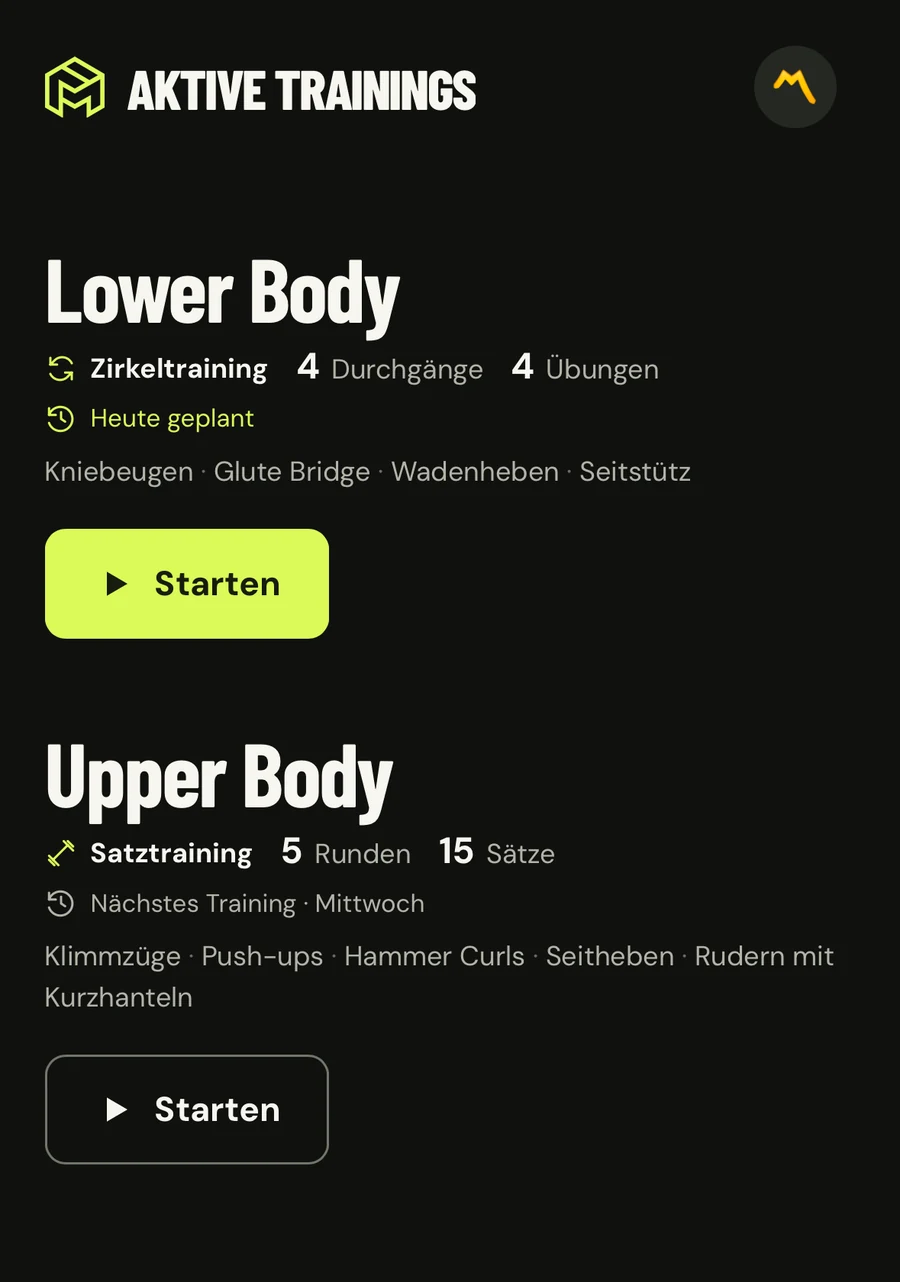
The scheduled workout gets a filled lime Start button. The next workout can still be started early.
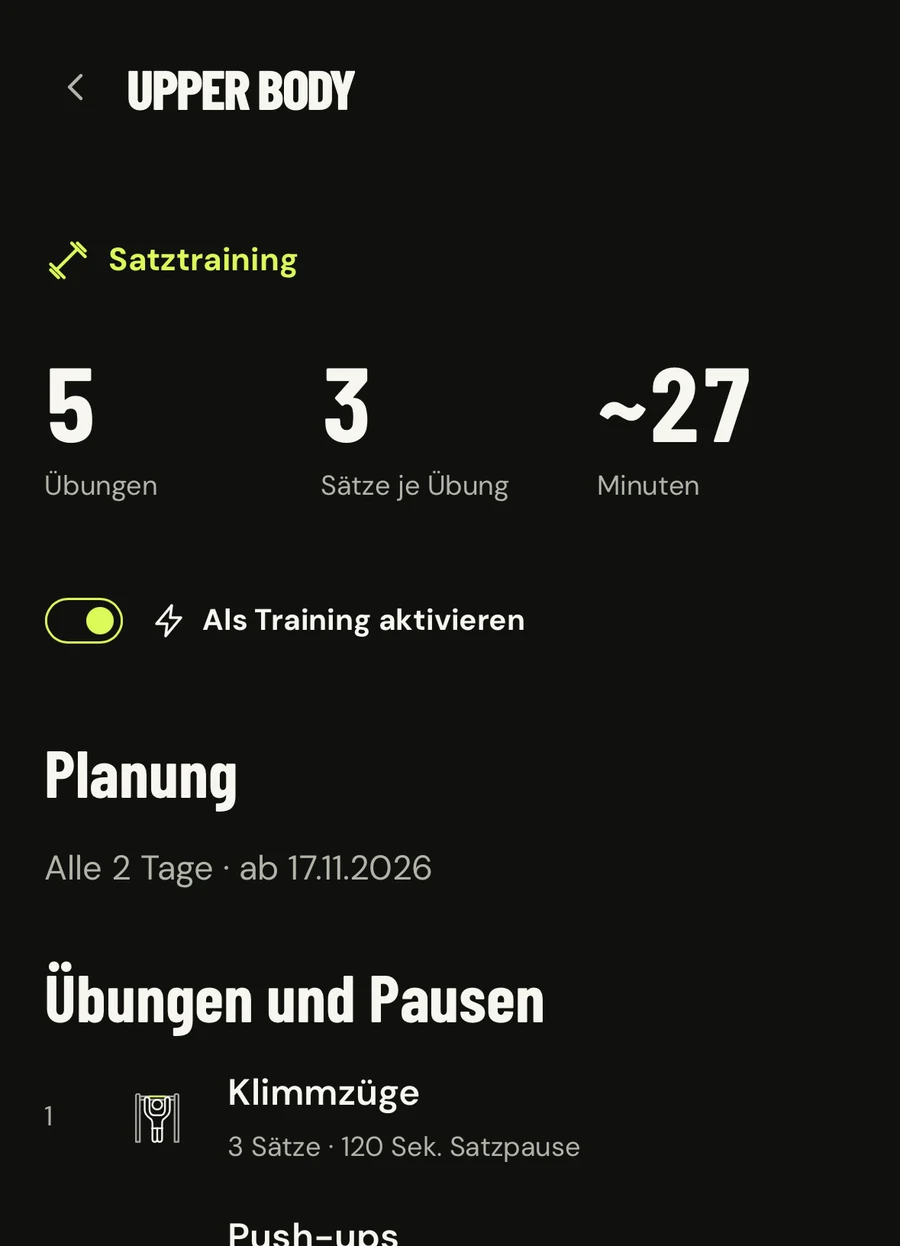
The plan puts exercises, sets and estimated duration first. The exercise list gives the rest after each set.

The selected 60 seconds stand out in lime. The step count and progress bar show how much setup is left.

The weekly bars summarise completed workouts. A tap on a bar opens the workouts behind it.
See the workouts behind the chart
The progress view starts with frequency: bars show how often I trained in the selected period. An exercise view answers a different question by comparing values such as reps or weight across sessions.
I made each bar or point a way back to the underlying records. That means I can move from noticing a change to checking what I actually logged in the relevant workout.

